
Create Device for a User
With EasyUC you have three options to create a device for a user.
Create Device from User View
Navigate to “Users”->”Users” and search the user for which you want to create a Device. Navigate now to the device area and choose “Create”->”Device”
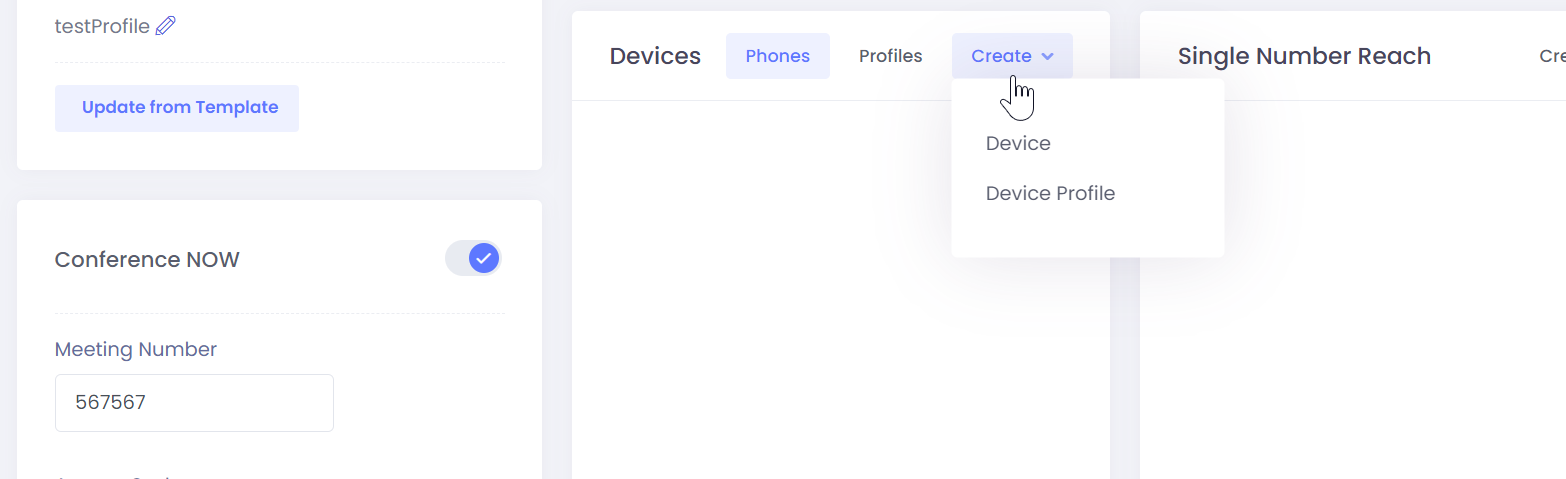
Then you can select which phones you want to create for the user.

After select all phones, press save and EasyUC will create all phones.

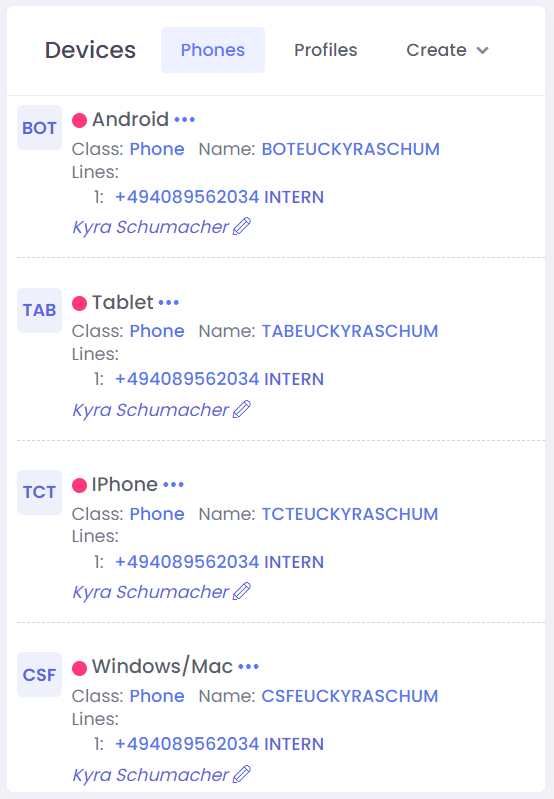
After creating you will see all phones in the device area.
Create Device from Phone Area
You could also navigate to “Device”->”Phones” and select “Create” to create new devices. You can create a device for an existing enduser or you can create a new local enduser.

Type in or choose the phone number which you want to use.

Select which phone type you want to add and click “Save” to add the phones.

Create Devices for Users from Numberplan
If you search for a phone number which you can use for a new phone, you can also use the numberplan and create a phone from this directly without navigating to the users area.
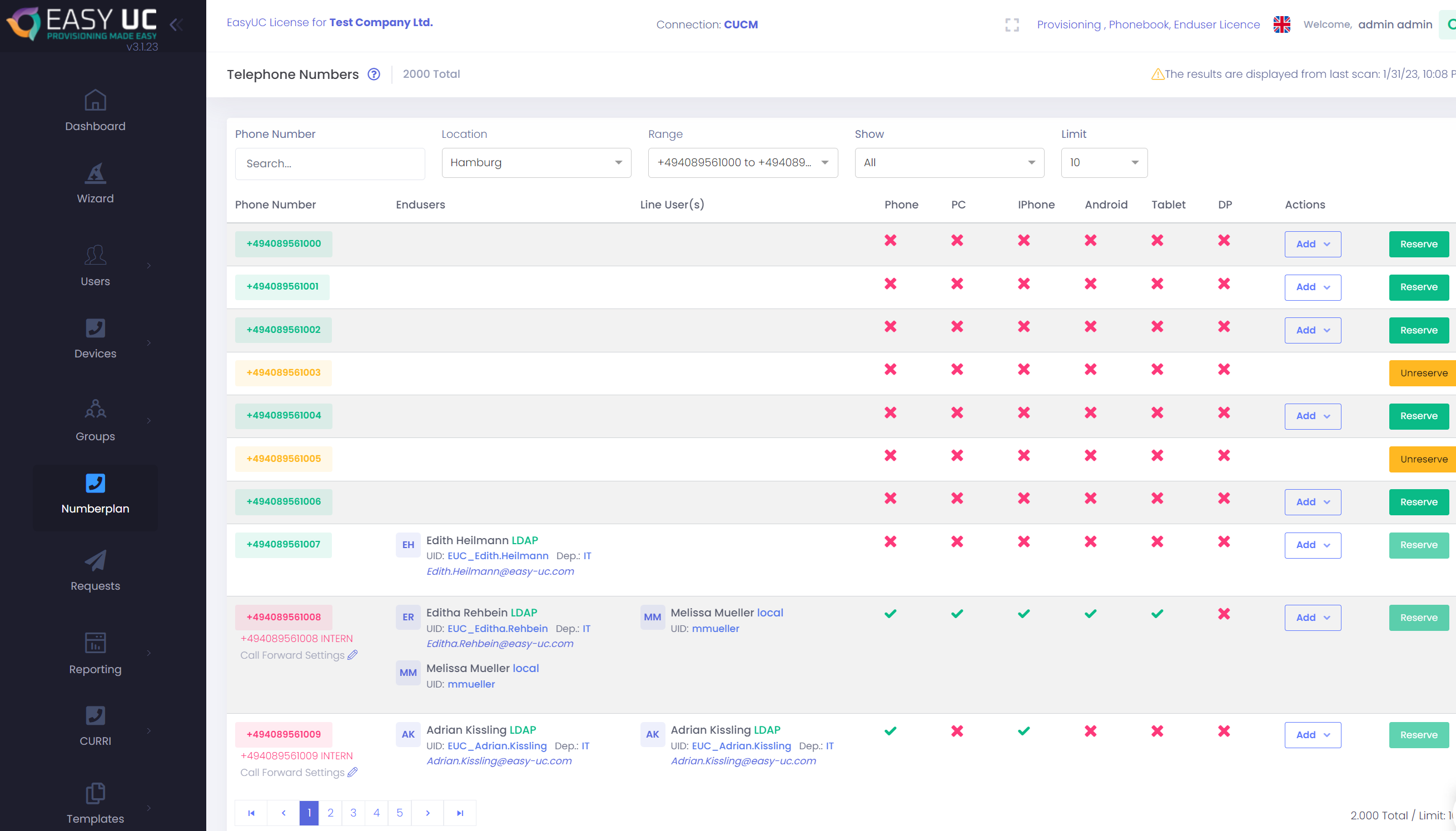
Navigate to the Numberplan and get a list of all telephone numbers of the system. Also see directly if the number is used, what type of phones are configured.
Also you can filter to see only used numbers or see all free numbers.
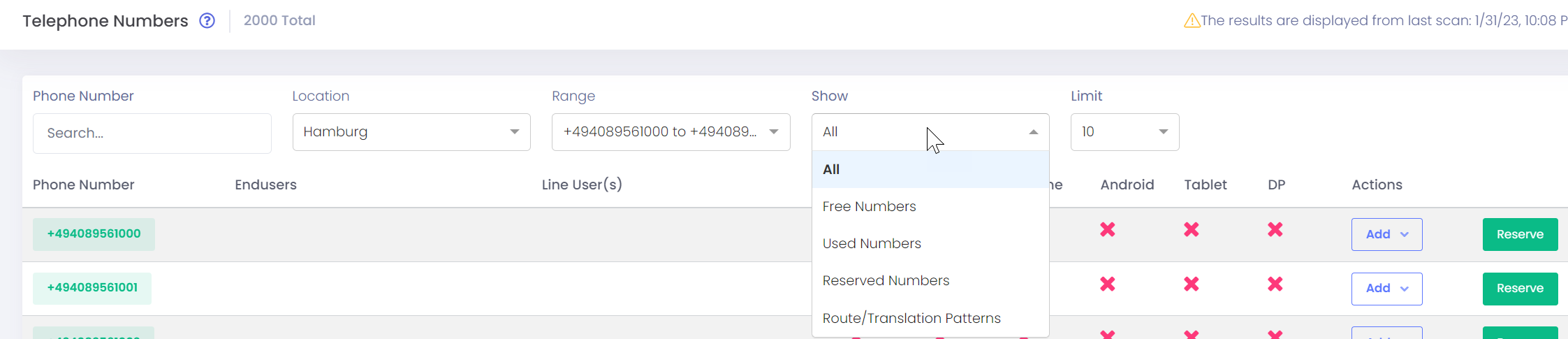
The number which you want to use click on “Add”->”Device”

Now select the user which you want to use for this phone number.
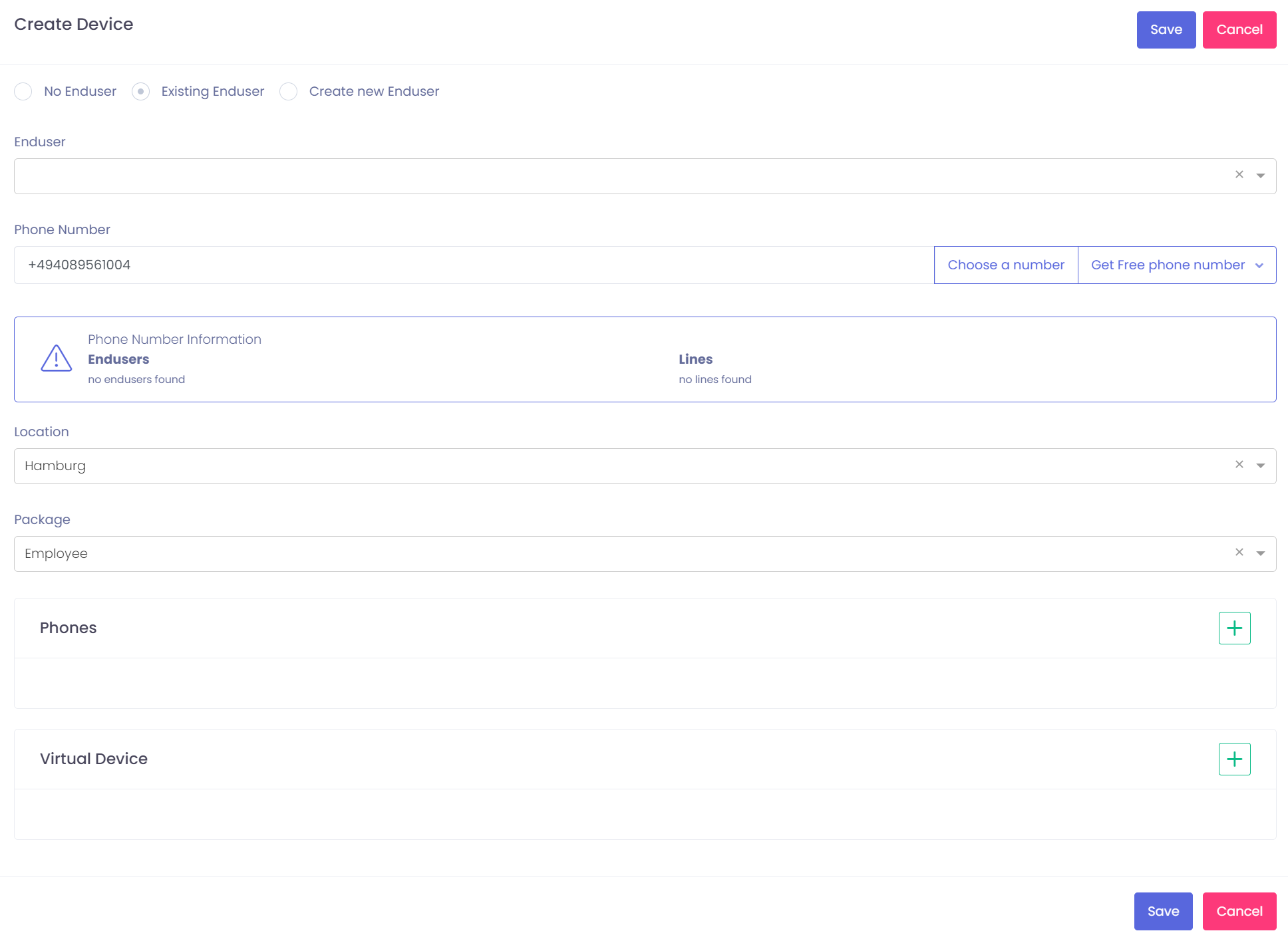
After the user is selected, define which phones should be created and click save to create this devices.


