
EasyUC Web Installer – Install EasyUC
After you configured the network settings you can access EasyUC via http://<easyuc-ip>:8080.
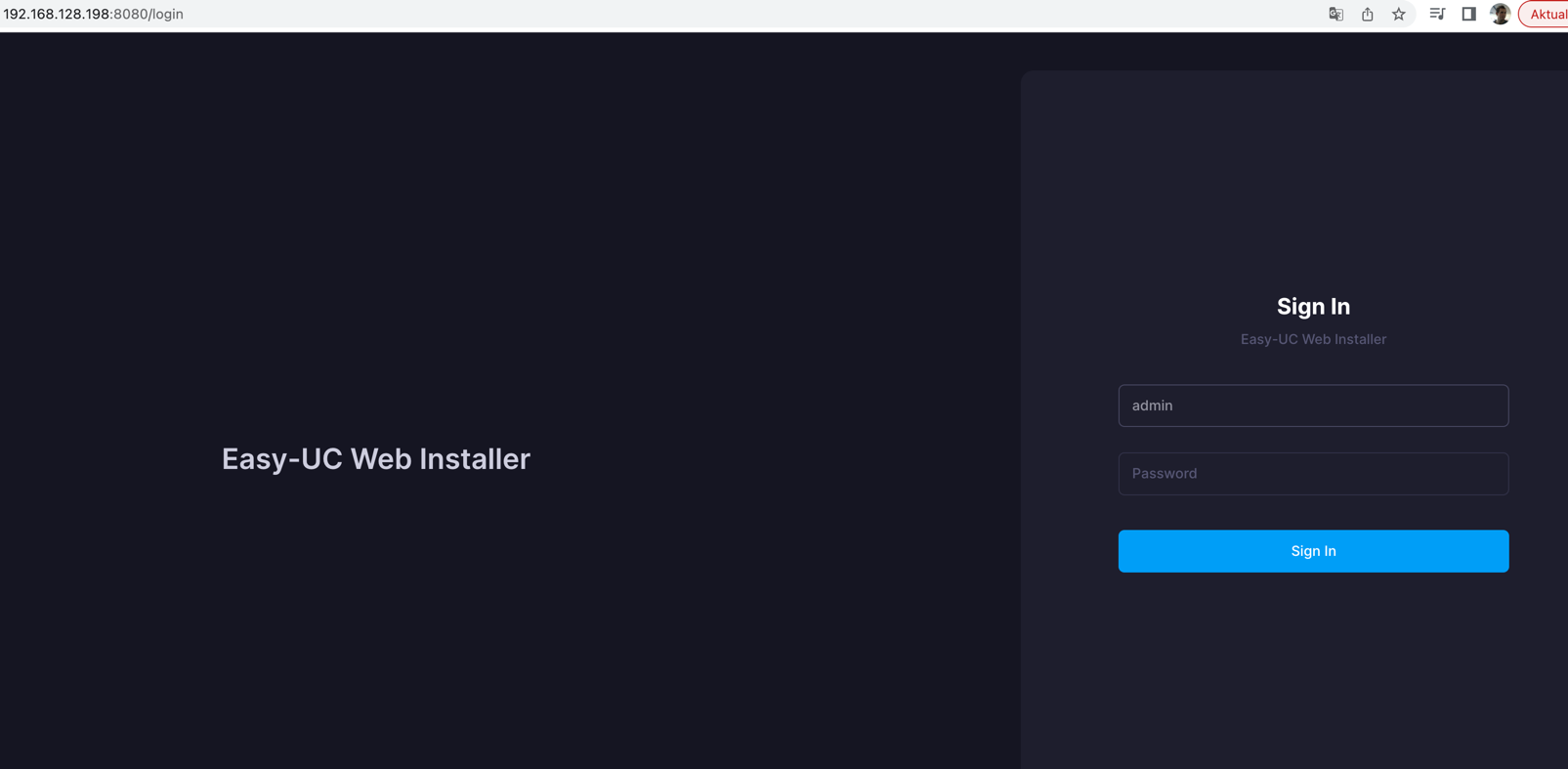
When first accessing the Web Installer, login with:
username: admin
password: leave blank
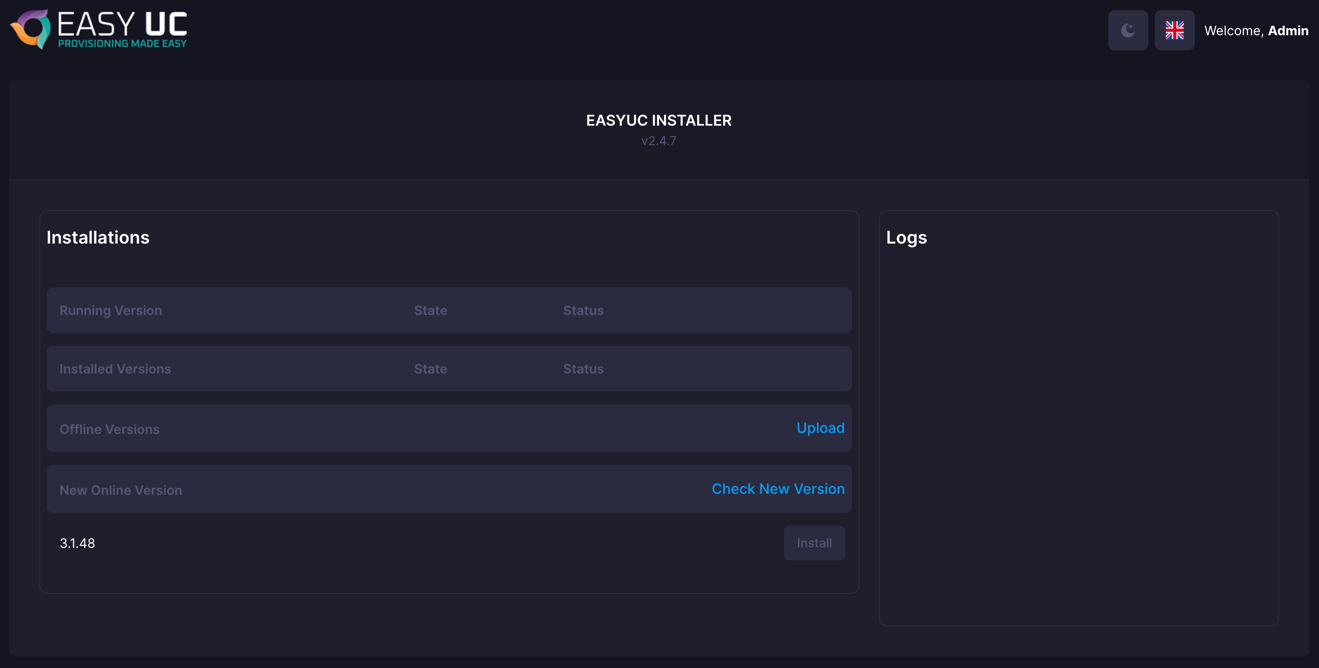
After successfully logging into the Web Installer, you will see this.

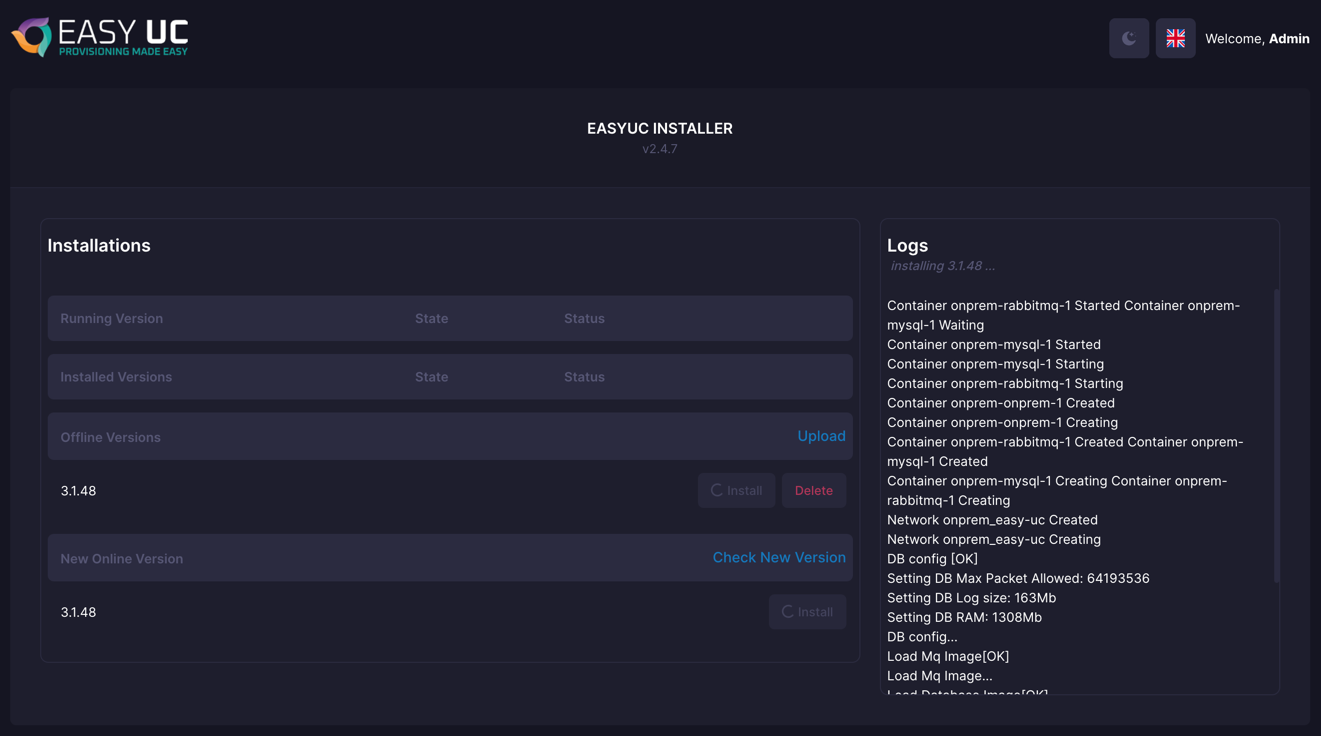
If EasyUC has access to the internet, you can click on Check New Version. Then you will see the latest EasyUC version. Click on Install to download and install the latest version.
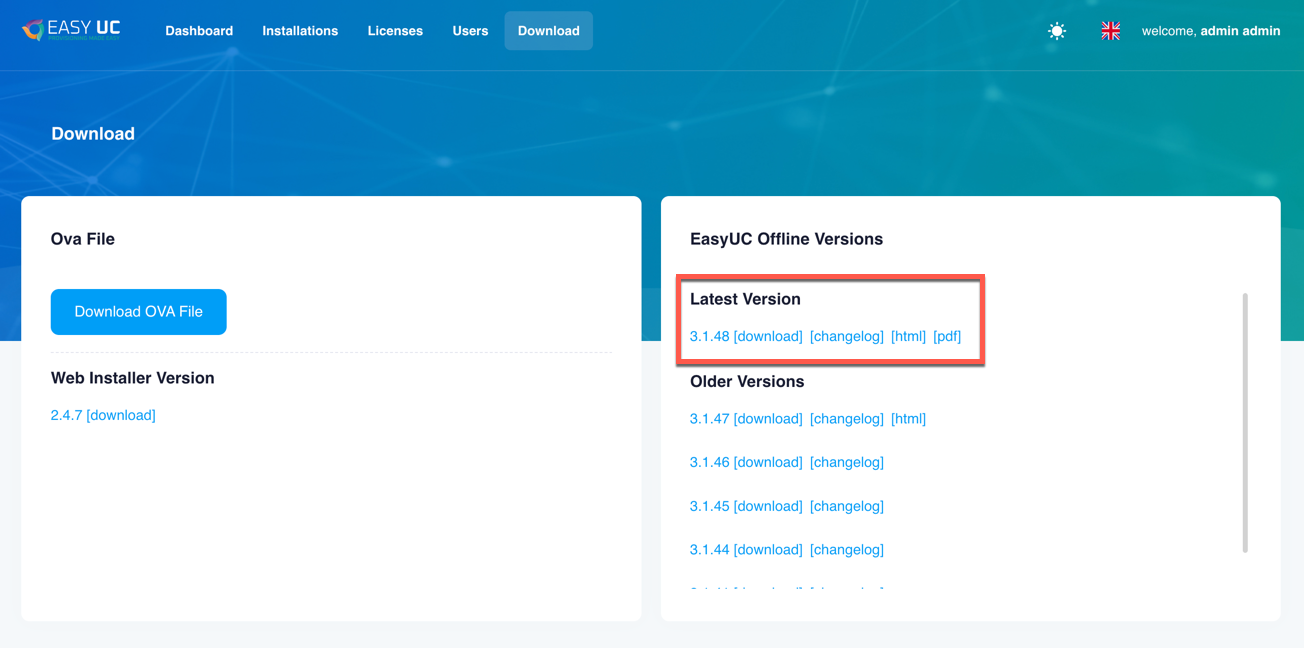
If EasyUC does not have access to the internet, you can also download the EasyUC version from our portal and upload it manually in the Web Installer.
Download the version as shown.
Once the file was downloaded, go to the Web Installer and click Upload.

Choose the file, then click on Upload.
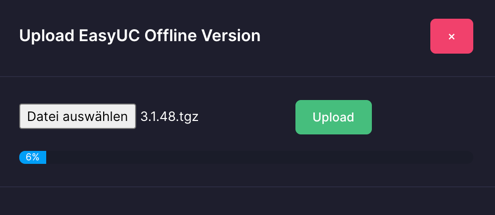
When the upload is finished, you will see the uploaded version in the section Offline Versions.

After click on install, the installation starts. After 15-20 minutes, EasyUC will be installed.
Click on Install and wait for the installation to complete. It usually takes about 15-20 minutes.
This guide is also available as a video:

